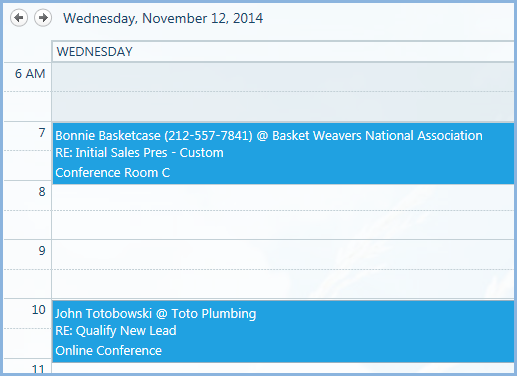
Multiple Columns can be displayed in the standard SharePoint Calendar, allowing you to see additional information about a Calendar meeting. This is done by adding a calculated Column Field that contains the fields you wish to be shown.
Configuring
- Click within the Calendar to display Events/Calendar option at the ribbon bar at the top of the page. Click Calendar, then List Settings:


- Create a Calculated Column as shown below:
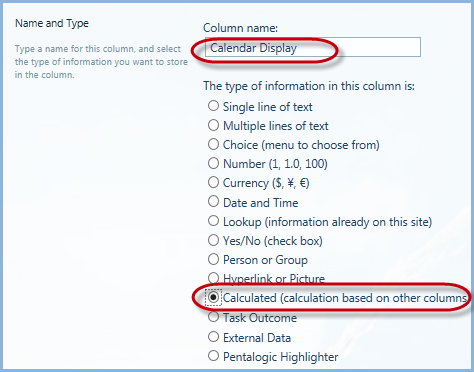
- Enter the following Formula:
="w/"&[Main Contact]&"@ "&Account&"@|@RE:"&Summary - (Follow Syntax in example exactly as shown):
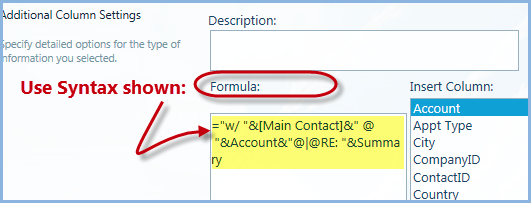
Note: The special part of this is the “@|@” text – this will be replaced with a line feed when rendered to the page.
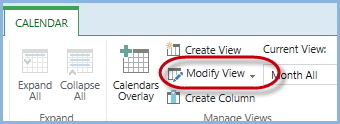
- Return to the Calendar View, and launch the Calendar tools to modify the view:
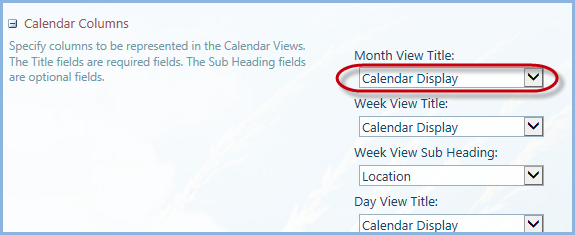
- In the Calendar Columns section, change the displayed Month View Title (and Week & Daily View, if desired) to the new Calculated Column:
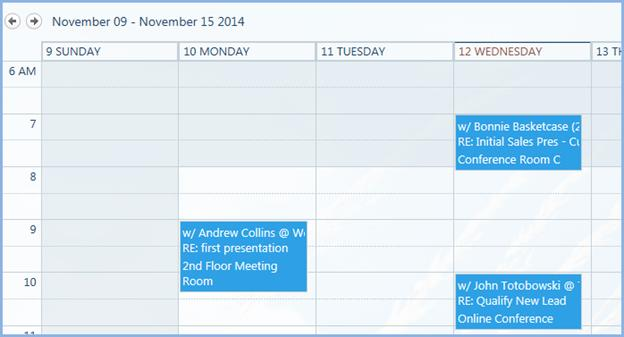
- Click OK and return to the Calendar. Items now appear with the two lines of text.
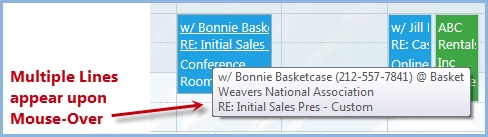
Note: There is a limit of two lines.
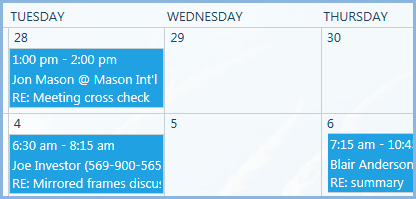
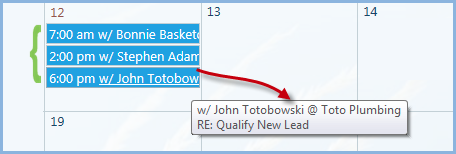
Additionally, if there are multiple Calendar items on the same day, the lines will be cut to one due to space limitations. Upon mouse-over, however, both lines appear:
This feature works with Daily and Weekly views as well: